79 79. Step 5a: Supabase CLI command
As of Oct 22, 2026 · Official docs: Supabase CLI
The supabase CLI is a command that you can run from your terminal to control and configure your Supabase server. The name of the command is appropriately “supabase”.
While, you can configure and manage your remote supabase server directly from the supabase website, it is often easier to use the supabase CLI command to perform much of the configuration and management of the supabase server.
Do not confuse the supabase CLI command with the supabase server. These are different products. Both can be installed locally.
The supabase server can be installed locally or used only remotely. In this tutorial we will NOT install the supabase server locally and only use a remote supabase server (this is much easier for beginners).
We WILL install the supabase CLI tool to enable us to configure and manage our remote supabase server by running commands in our terminal on our local computer.
79.1 Installing the Supabase CLI
There is more than one way to install the supabase CLI:
In the previous section you setup a Supabase project on the Supabase website. Supabase has many different features (database, authentication, edge functions, storage buckets, etc). You can configure most of what you need to configure by “clicking around” on the website. However, there are some things that cannot be done on the website. For these things we must use the “supabase CLI tool”.
In addition, using the supabase CLI command can often be easier and more efficient than accessing the same functionality via the Supabase website.
79.2 Using Supabase CLI via npx
There are different options for installing/running the supabase CLI command. The simplest and easiest way to use the supabase command is to use the npx command to run the supabase command. npx comes with Node.js. While the npm (Node Package Manager) tool is used to download and install packages, npx runs a command that comes from an npm package. This project’s package.json lists the Supabase CLI as a development dependency, so npm install has already put a copy of it in the project’s node_modules folder, and npx supabase runs that copy.
Run it in the project folder. npx looks for the program in the node_modules folder of the folder you’re in. In another folder it finds no copy and uses (or downloads) a different, often older, one. The Supabase CLI also reads which Supabase project to work on from the folder you’re in (supabase/.temp/project-ref, written by npx supabase link), so a command run in the wrong folder can change the wrong project. Signs that you’re not in the project folder: npx asks “Need to install the following packages: supabase… Ok to proceed?” (answer n), the CLI says “Cannot find project ref. Have you run supabase link?”, or it says “A new version of Supabase CLI is available” (an older copy from elsewhere ran).
For example, if you run the following command from the top level folder of your project, you will see a quite lengthy message that describes the different options you can use with the Supabase CLI tool. We will be covering some of the many options as we progress through this tutorial.
npx supabase --helpIMPORTANT: In this tutorial we will be running the supabase CLI via npx. Therefore when following this tutorial, every time you run the command from the command line you will actually need to type npx supabase (instead of just supabase). If you install the command another way, you would just type supabase and not npx supabase. Keep this in mind if you ask any of the popular AI LLMs for help. They might tell you to type supabase ... and you need to know to actually type npx supabase ...
79.3 Installing Supabase CLI on your computer
NOTE: remember that the supabase CLI is NOT the same as the supabase server. In this section we are discussing installing the supabase CLI on your local computer - not the supabase server.
In this tutorial we will be using npx to run the supabase CLI. npx supabase runs the copy of the CLI in your project’s node_modules folder, the version that the project’s package.json and package-lock.json name. (If a project doesn’t include the CLI, npx downloads it first.)
The course’s copy of the project (y-rosenthal/yr-2026-full-stack-demo) already names a current version of the CLI (2.121.0, as of October 2026), so the npm install you ran in Step 2 installed it. You don’t need to install or update anything. To see which version you have, type this in VS Code’s terminal, in the task-app folder:
npx supabase --versionIf it shows 2.1.1, your fork is older than that update (or you cloned the video’s original repository). Update the CLI to the newest version:
npm install -D supabase@latest-D (short for --save-dev) records the CLI in package.json as a development dependency, and @latest asks for the newest version. The command changes package.json and package-lock.json, which you commit with your other changes later. The update matters because version 2.1.1 can prepare (bundle) Edge Functions for upload only with Docker, while current versions can do that on Supabase’s servers, so you don’t need Docker (see Where Docker fits below).
Some people prefer to install the supabase CLI on their computer instead, so that it works in every folder. You can do so by using one of the options listed below. Note that if you do install supabase on your computer then the command would simply be
supabase ...(other options)...
instead of
npx supabase ...(other options)....
See official instructions for how to install here: https://supabase.com/docs/guides/local-development/cli/getting-started The following summarizes your options to install locally:
Install the supabase CLI command as an npm package. To do so, run the following command from the root (top level folder) for your project:
npm install supabase --save-devNOTE: installing using the -g option to npm is no longer supported
You can also install the supabase CLI command on Mac by using the Homebrew package manager or on Windows by using the Scoop package manager. See the instructions here https://github.com/supabase/cli?tab=readme-ov-file to learn more about this option.
You can also download the actual program files from here: https://github.com/supabase/cli/releases. Be aware that this page lists “pre-release” versions as well as “release” versions. The newest regular release is marked Latest. The “pre-release” versions may have the latest fixes and modifications, but they are not supported and may not have been fully tested.
79.4 How to use the supabase command via npm and npx
IMPORTANT: If you are using supabase cli via npm then you should prefix all uses of the supabase command with “npx” (see examples below). For example, the following command will show you which version of the supabase cli you are using:
npx supabase --versionThe following gives you a very short summary for how to use the supabase command
npx supabase --helpnpx runs (executes) a command that comes from an npm package.
79.4.1 supabase ‘sub-commands’
The supabase command has numerous “sub commands”. For example:
npx supabase dbis used to work with the Supabase database.
Runnpx supabase db --helpto get help specific to the db sub-command.npx supabase functionsis used to work with Supabase “edge functions”.
Runnpx supabase functions --helpto get help specific to the functions sub-command.etc.
The full official reference for how to use the supabase CLI command is here: https://supabase.com/docs/reference/cli/introduction There are many options and the official reference can be overwhelming. We will walk you through an introduction of using the supabase CLI command in this tutorial.
79.5 Log in to Supabase
The login asks you questions in the terminal. Claude Code can’t answer those, so type this command yourself, in VS Code’s terminal, in the task-app folder:
npx supabase loginYou should see the following:
Hello from Supabase! Press Enter to open browser and login automatically.Press
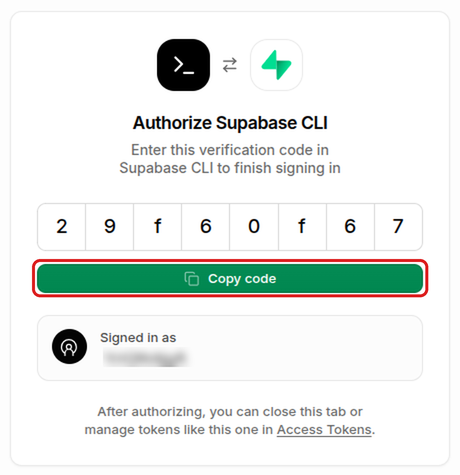
Enter. If no browser opens, holdCtrl(Cmdon a Mac) and click the login link that the terminal prints.The browser page shows a verification code. Click Copy code.
Go back to the terminal, paste the code, and press
Enter.The terminal says “You are now logged in.”
The CLI then keeps a token (a long secret string, like a pass) on your computer, so you stay logged in.


79.6 Get a list of your projects
Run the command npx supabase projects list to get a list of your supabase projects. Output should look similar to the following. (I changed the IDs shown below. A project ref isn’t secret, since it is part of your project’s public URL, but there is no need to publish it either.) This shows that my supabase setup currently has two different projects:
$ npx supabase projects list
Cannot find project ref. Have you run supabase link?


   LINKED | ORG ID               | REFERENCE ID         | NAME               | REGION                   | CREATED AT (UTC)
  --------|----------------------|----------------------|--------------------|--------------------------|---------------------
          | bxcebkwgtuyzysrsyvsx | iswnysrsyqrpblgfvrar | supabase tutorial  | East US (North Virginia) | 2025-10-23 13:25:25
          | bxcebkwgtuyzysrsyvsx | bvysrsysihcpsomfkyja | Supbase tutorial 3 | East US (North Virginia) | 2025-10-23 17:24:36
79.7 Find your project’s reference ID
In the next step we will “link” the project on your computer to your Supabase project that you setup on the Supabase website. To do so, you will need to know your “project ref”. It is listed in the output of the npx supabase projects list command (see above). For example, the REFERENCE ID for the 2nd project listed above is bvysrsysihcpsomfkyja.
If you recorded it in your setup worksheet in Step 5, copy it from there: it is the part of your project URL before .supabase.co.
The project reference ID is also part of the web address of your project’s Supabase dashboard. You can find it in the address bar while you are in your project’s dashboard. It looks something like this: https://supabase.com/dashboard/project/bvysrsysihcpsomfkyja The part after /project/ is your project ref, ie. in the example above this would be bvysrsysihcpsomfkyja. However, your own project-ref will obviously be different.
79.7.1 Link your project
Once you have identified your project ref, go to the task-app folder in VS Code’s terminal (or let Claude Code run the command for you). Then run the following command, where “YOUR_PROJECT_REF” is replaced with your actual project ref (the worksheet’s Commands sheet has this line with your ref in it). This command creates a connection between your local machine and your cloud project so that future commands from the CLI know which project you’re working with. The CLI remembers the link in the folder supabase/.temp, which Git ignores.
npx supabase link --project-ref YOUR_PROJECT_REFThe option --project-ref names the project, followed by your ref. If the command asks for the database password, type the command yourself and paste the password from your worksheet.
For example, given the example above the command would be: The output shown below is what I got when I ran the command. This indicates that my project is linked with the remote supabase server. The WARNING that you see is harmless. Click on the link below to understand more about this warning message.
npx supabase link --project-ref bvysrsysihcpsomfkyjaInitialising login role... Connecting to remote database... Finished supabase link. WARNING: Local database version differs from the linked project. Update your supabase/config.toml to fix it: [db] major_version = 17
79.7.2 Test the link
You can run the following commands to test that your link has been established correctly.
The following should show all Supabase projects your CLI account has access to:
npx supabase projects listIn its output, the LINKED column marks the project that the current folder is linked to.
79.8 Two README commands to skip
The project’s README.md (and the tutorial video) also show commands that you should not run in this course:
- Skip
supabase init. It creates thesupabase/config.tomlfile for a new project. This project already has that file, soinitfails. Just runloginandlink. - Don’t run
npx supabase start. It runs a complete copy of Supabase on your own computer, which needs Docker. This course uses only your hosted (remote) Supabase project.
79.9 Where Docker fits
You don’t need Docker for this project, but you’ll hear about it, and AI tools sometimes suggest it.
Docker packages a program together with everything it needs (the right versions of its language, libraries and settings) into a container that runs the same way on any computer. A container image is the packaged program; a container is a running copy of it (Hosting and Deployment introduces the idea).
In this project, everything that runs on a server runs on someone else’s computers: Supabase hosts the database and Edge Functions, and Vercel hosts the website. That is why you don’t need Docker. (Old versions of the Supabase CLI, such as 2.1.1, needed Docker to prepare Edge Functions for upload; current versions don’t. See the update above.)
Professional teams often also run a complete copy of Supabase on their own laptops, to experiment without touching the real project. The Supabase CLI does this with npx supabase start, which downloads Supabase’s container images and runs them in Docker: a local database, local logins, local storage, and a local dashboard at http://localhost:54323. To try it:
Install Docker Desktop for Mac from docker.com and start it.
Install Docker Desktop for Windows from docker.com and start it. It may ask you to turn on WSL 2, a Windows feature it needs.
Install Docker Engine with your system’s package manager (see docs.docker.com), or Docker Desktop for Linux.
Then type npx supabase start in VS Code’s terminal, in the task-app folder (start starts the local copy of Supabase; npx supabase stop stops it). Docker needs a fairly recent computer and several GB of disk space, which is why it isn’t required in this course. Docker Desktop is free for personal and educational use.
Practice Questions
Easy
Question 1 · True or false
The Supabase CLI and the Supabase server are the same product.
Question 2 · Multiple choice
How do you type Supabase CLI commands in this tutorial?
supabase <command>npx supabase <command>npm supabase <command>node supabase <command>
Question 3 · Short answer
What is the difference between npm and npx?
Question 4 · Write the command
Write the command that shows which version of the Supabase CLI you are using.
Question 5 · Short answer
You can configure most of Supabase by clicking around on the Supabase website. Give two reasons why the tutorial uses the CLI anyway.
Question 6 · True or false
If you forked the course’s copy of the project in October 2026 or later, you must run npm install -D supabase@latest before you can use the Supabase CLI.
Medium
Question 7 · Matching
Match each command with what it does.
| Command | What it does | |
|---|---|---|
1. npx supabase login |
A. Lists all Supabase projects your account can access | |
2. npx supabase projects list |
B. Connects your project folder to one Supabase project online | |
3. npx supabase link --project-ref <ref> |
C. Shows help for the database sub-command | |
4. npx supabase db --help |
D. Connects the CLI to your Supabase account | |
5. npx supabase --help |
E. Shows a summary of all CLI commands and options |
Question 8 · Short answer
Name two places where you can find your project’s reference ID (the “project ref”).
Question 9 · Write the command
Your project ref is kplmnoqrstuvwxyzabcd. Write the command that links your project folder to this Supabase project. In which folder should you run it?
Question 10 · Ordering
Put these steps in the order you would do them.
- Run
npx supabase link --project-ref <ref> - Run
npx supabase loginand enter the code shown in the browser - Create a project on the Supabase website
- Test the link, for example by running
npx supabase projects listagain - Run
npx supabase projects listand copy your project’s REFERENCE ID
Question 11 · Scenario
An AI chatbot tells you to run supabase functions --help. Your terminal answers command not found. Why, and what should you type instead?
Question 12 · True or false
The recommended way to install the Supabase CLI is npm install -g supabase.
Question 13 · Short answer
The CLI’s GitHub releases page lists a “release” version and several newer “pre-release” versions. Which should a beginner use, and why?
Question 14 · Short answer
Claude Code can run most commands for you. Why do you type npx supabase login yourself?
Question 15 · Scenario
Sam runs npx supabase --version and it shows 2.1.1. What should he do, and why does it matter?
Hard
Question 16 · Scenario
After running npx supabase link, you see:
WARNING: Local database version differs from the linked project.
Update your supabase/config.toml to fix it:
[db]
major_version = 17What does the warning mean, why can you ignore it in this tutorial, and how could you make it go away?
Question 17 · Scenario
You run npx supabase projects list. Before the list of projects, the output says Cannot find project ref. Have you run supabase link? Is something broken? What does the message mean?
Question 18 · Short answer
Why should you run npx supabase link from your project’s top-level folder rather than from, say, your home folder?
Question 19 · Scenario
A teammate says: “I already ran npx supabase login, so the CLI knows which project to work on.” Is that right? Explain.
Question 20 · Scenario
Following the project’s README, Maria runs npx supabase init, and it fails. What went wrong, and what should she do instead?
Question 21 · Multiple choice
Why does this course not need Docker?
- Docker only works on Linux
- Everything that runs on a server runs on someone else’s computers (Supabase and Vercel), and the current CLI prepares Edge Functions without Docker
- The Supabase CLI includes its own copy of Docker
- Docker is needed only for the front end, which runs in the browser
Question 22 · Short answer
What does npx supabase start do, and what does it need? Why might a professional team use it?