##################################################################.##################################################################.#### In this file:#### - Using the rvest package to scrape information from a## basic HTML website#### - Packaging up the code to scrape a page into a function#### - Using a loop to scrape several pages of information## whose URLs differ in a predictable way.#### - Fixing fragile CSS selectors## ## - Intro to regular expressions (regex)#################################################################.#################################################################.#-------------------------------------------------------------------------------# Some online resources## video demonstrating basics of web scraping in R# - https://www.youtube.com/watch?v=v8Yh_4oE-Fs&t=275s## Tips for editing HTML in VSCode# - https://code.visualstudio.com/docs/languages/html## Tips on how to use VSCode in general:# https://code.visualstudio.com/docs/getstarted/tips-and-tricks## timing R code# - https://www.r-bloggers.com/2017/05/5-ways-to-measure-running-time-of-r-code/## video - using RSelenium to scrape dynamic (ie. javascript) webpage# - https://www.youtube.com/watch?v=CN989KER4pA## CSS selector rules# - https://flukeout.github.io/ # - answers to the "game": https://gist.github.com/humbertodias/b878772e823fd9863a1e4c2415a3f7b6## Intro to regular expressions# - https://ryanstutorials.net/regular-expressions-tutorial/#-------------------------------------------------------------------------------# Install (if necessary) and load the rvest package# The following two lines will install and load the rvest package.# I commented out these lines in favor of the one line below##install.packages("rvest") # installs it on your machine (only need to do this once on your machine)#library(rvest) # do this everytime your start RStudio (also require(rvest) works)# This one line will accomplish what the two lines above do. However,# this one line will not install the package if it's not necessary.if(!require(rvest)) install.packages("rvest") # this automatically also loads the "xml2" package
Loading required package: rvest
Warning in library(package, lib.loc = lib.loc, character.only = TRUE,
logical.return = TRUE, : there is no package called 'rvest'
Installing package into '/home/yitz/R/x86_64-pc-linux-gnu-library/4.5'
(as 'lib' is unspecified)
also installing the dependencies 'curl', 'httr', 'xml2'
Warning in install.packages("rvest"): installation of package 'curl' had
non-zero exit status
Warning in install.packages("rvest"): installation of package 'xml2' had
non-zero exit status
Warning in install.packages("rvest"): installation of package 'httr' had
non-zero exit status
Warning in install.packages("rvest"): installation of package 'rvest' had
non-zero exit status
help(package="rvest")
Error in find.package(pkgName, lib.loc, verbose = verbose): there is no package called 'rvest'
help(package="xml2")
Error in find.package(pkgName, lib.loc, verbose = verbose): there is no package called 'xml2'
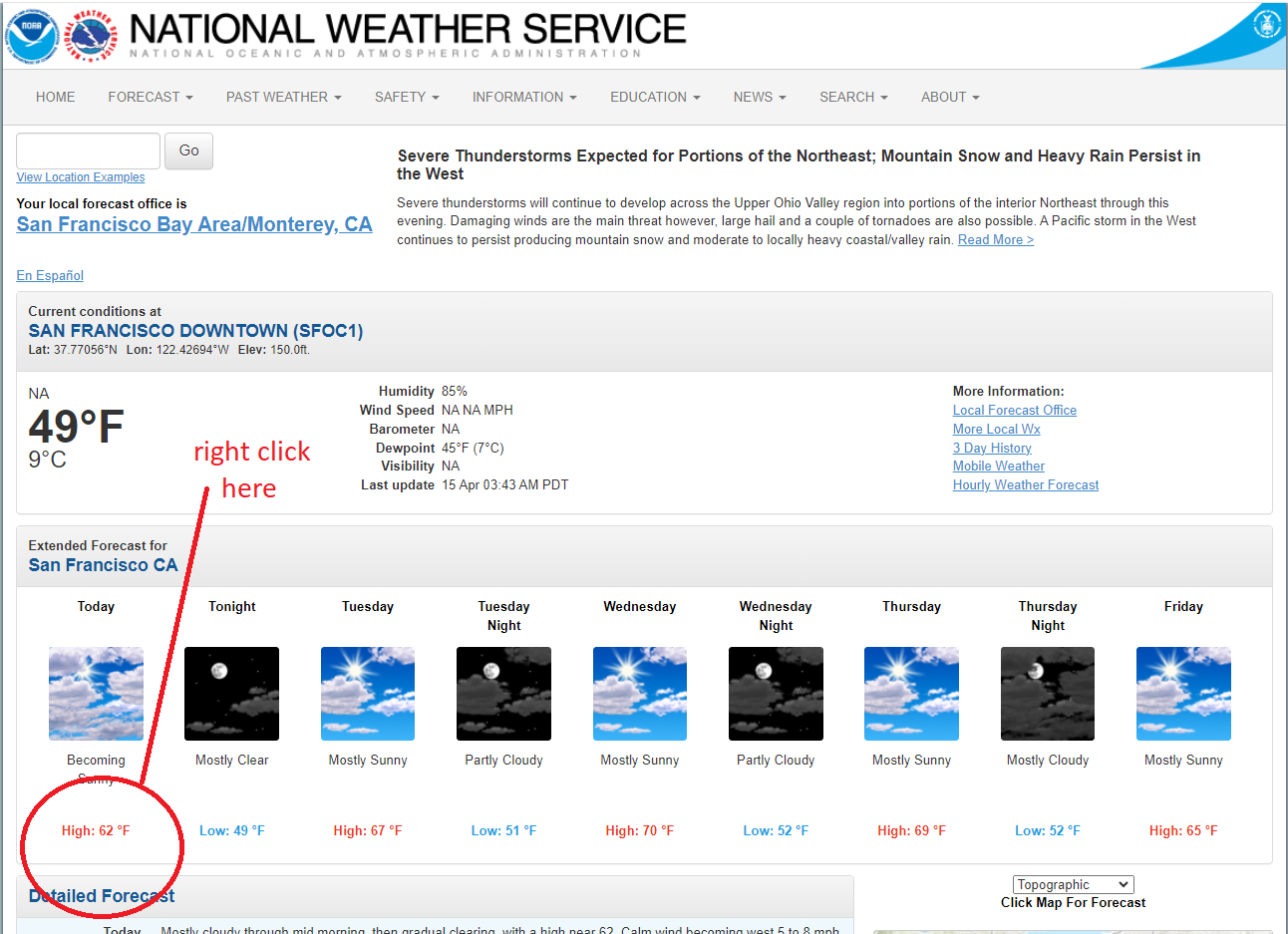
############################################################################# Code to download high/low temperature data from the following website############################################################################url ="https://forecast.weather.gov/MapClick.php?lat=37.7771&lon=-122.4196#.Xl0j6BNKhTY"# You can get a very sepecific CSS selector for a particular # part of a webpage by using the "copy css selector" feature of# your browser. Every browser has a slightly different way of doing this# but they are all similar. In Chrome do the following:## (1) right click on the portion of the page you want to scrape# and choose "inspect"# (2) right click on the portion of the HTML that contains what# you want and choose "Copy" and then "Copy Selector"# # This gives you a very, very specific selector to get this info.# # For exmaple, we followed this process for the first high temperature # for this webpage and got the following selector. ## CSS SELECTOR: (note the leading # on the line below is part of the selector)# #seven-day-forecast-list > li:nth-child(1) > div > p.temp.temp-high## WARNING - this is a VERY specific selector! You will often need# to modify this selector so that it is LESS specific and gets # more than just the one piece of info you clicked on.weatherPage =read_html(url)
Error in read_html(url): could not find function "read_html"
Error in weatherPage %>% html_elements(cssSelector) %>% html_text2(): could not find function "%>%"
temperature
Error: object 'temperature' not found
x =read_html(url)
Error in read_html(url): could not find function "read_html"
x
Error: object 'x' not found
y =html_elements(x, cssSelector )
Error in html_elements(x, cssSelector): could not find function "html_elements"
y
Error: object 'y' not found
z =html_text(y)
Error in html_text(y): could not find function "html_text"
z
Error: object 'z' not found
# What is the structure of x?str(x)
Error: object 'x' not found
55.5 Choosing better CSS Selectors
####################################################################.# If we analyze the HTML code, a MUCH BETTER selector is .temp# This selects all html elements that have class="temp"####################################################################.#------------------------------------------------------------------.# NOTE: ## When webscraping you should "play nicely" with the website.# We already read the page above using the following line of code:## weatherPage = read_html(url)## Don't do this again. Every time you read the page you are causing# the website to do some work to generate the page. You also use# network "bandwidth". #------------------------------------------------------------------.# Don't do this again - we already did it. Read comment above for more info.## weatherPage = read_html(url)cssSelector =".temp"forecasts <- weatherPage %>%html_elements( cssSelector ) %>%html_text()
Error in weatherPage %>% html_elements(cssSelector) %>% html_text(): could not find function "%>%"
forecasts
Error: object 'forecasts' not found
x =read_html(url)
Error in read_html(url): could not find function "read_html"
x
Error: object 'x' not found
y =html_elements(x, cssSelector )
Error in html_elements(x, cssSelector): could not find function "html_elements"
y
Error: object 'y' not found
z =html_text(y)
Error in html_text(y): could not find function "html_text"
z
Error: object 'z' not found
# What is the structure of x?str(x)
Error: object 'x' not found
55.6 Scraping country names
############################################################################# Get the country names off the following website############################################################################url ="https://scrapethissite.com/pages/simple/"cssSelector =".country-name"countries <-read_html(url) %>%html_elements( cssSelector ) %>%html_text()
Error in read_html(url) %>% html_elements(cssSelector) %>% html_text(): could not find function "%>%"
x =read_html(url)
Error in read_html(url): could not find function "read_html"
x
Error: object 'x' not found
y =html_elements(x, cssSelector)
Error in html_elements(x, cssSelector): could not find function "html_elements"
y
Error: object 'y' not found
z =html_text(y)
Error in html_text(y): could not find function "html_text"
z
Error: object 'z' not found
#..............................................................................# Let's examine the results.# # Notice that the results includes the newlines (\n) and blanks from the .html# file. This is because we picked up EVERYTHING that appears between the# start tag and end tag in the HTML.## Below, we will see how to fix up the results below by using the gsub function.#..............................................................................countries
Error: object 'countries' not found
55.7 Same thing without pipes
############################################################################# same thing a slightly different way (without magrittr pipes)############################################################################url ="https://scrapethissite.com/pages/simple/"cssSelector =".country-name"whole_html_page =read_html(url)
Error in read_html(url): could not find function "read_html"
Error in html_elements(whole_html_page, cssSelector): could not find function "html_elements"
just_the_text =html_text(country_name_html)
Error in html_text(country_name_html): could not find function "html_text"
#...........................# Let's examine each part #...........................# the contents of the entire HTML pagewhole_html_page
Error: object 'whole_html_page' not found
# just the HTML tags that we targeted with the cssSelectorcountry_name_html
Error: object 'country_name_html' not found
# remove the actual start and end tags ... leaving just the text.# again ... notice that this picked up the newlines (\n) and blanks from the .html filejust_the_text
Error: object 'just_the_text' not found
#@@@@@@@@@@@@@@@@@@@@@@@@@@@@@@@@@@@@@@@@@@@@@@@@@@@@@@@@@@@@@@@@@@@@@@@@@@@@# Let's look a little closer at the contents of what is returned by read_html#@@@@@@@@@@@@@@@@@@@@@@@@@@@@@@@@@@@@@@@@@@@@@@@@@@@@@@@@@@@@@@@@@@@@@@@@@@@@# We already had this above, just reviewing it again ...url ="https://scrapethissite.com/pages/simple/"whole_html_page =read_html(url)
Error in read_html(url): could not find function "read_html"
#@@@@@@@@@@@@@@@@@@@@@@@@@@@@@@@@@@@@@@@@@@@@@@@@@@@@@@@@@@@@@@@@@@@@@@@@@@@@# An externalptr cannot be accessed directly via R code. It is a "blob"# (a "binary large object") i.e. a piece of data that is only accessible# via C language (not R) code that is used to build some of the packages# that are used to extend R's functionality. You must use the built in# functions in the xml2 and the rvest packages to access this data.#@@@@@@@@@@@@@@@@@@@@@@@@@@@@@@@@@@@@@@@@@@@@@@@@@@@@@@@@@@@@@@@@@@@@@@@@@@@@
55.8 Working with the data you scraped
#.....................................................................## we can eliminate extra newlines and the blanks with the gsub function# #.....................................................................?gsub # see the documentationwithout_backslash_n =gsub("\\n", "", just_the_text)
Error: object 'just_the_text' not found
without_backslash_n
Error: object 'without_backslash_n' not found
# The following has a bug in that it removes ALL spaces.# countries = gsub(" " , "" , without_backslash_n)# Just remove the spaces that appear BEFORE the country namecountries1 =gsub("^ *", "", without_backslash_n)
Error: object 'without_backslash_n' not found
countries2 =gsub(" *$", "", countries1)
Error: object 'countries1' not found
countries = countries2
Error: object 'countries2' not found
# alternatively, you can eliminate spaces and \n characters # before and after the text all in one shotcountries3 =gsub("(^[ \\n]*)|([ \\n]*$)", "", without_backslash_n)
Error: object 'without_backslash_n' not found
countries3
Error: object 'countries3' not found
55.9 Get all data into a dataframe
########################################################## Now that we understand the basics we can get# all of the country data and put it in a dataframe#########################################################url ="https://scrapethissite.com/pages/simple/"the_full_html =read_html(url)
Error in read_html(url): could not find function "read_html"
countries = the_full_html %>%html_elements( ".country-name" ) %>%html_text()
Error in the_full_html %>% html_elements(".country-name") %>% html_text(): could not find function "%>%"
###################################################### UPDATE:## The latest release of the rvest package includes# a function named html_text2. This function automatically# removes leading and trailing whitespace.# It's still important to understand how to modify the # data with gsub for situations for which you want to modify# the data other than leading and trailing whitespace.#####################################################url ="https://scrapethissite.com/pages/simple/"cssSelector =".country-name"whole_html_page =read_html(url)
Error in read_html(url): could not find function "read_html"
Error in html_elements(whole_html_page, cssSelector): could not find function "html_elements"
# Using html_text2 instead of html_text.# html_text2 automatically removes leading and trailing whitespace# from the text.just_the_text =html_text2(country_name_html)
Error in html_text2(country_name_html): could not find function "html_text2"
just_the_text
Error: object 'just_the_text' not found
55.11 Create a function to do the scraping
####################################################### Package up the technique into a function######################################################getCountryData <-function() {# Get all of the country data and put it in a dataframe url ="https://scrapethissite.com/pages/simple/" the_full_html =read_html(url) countries = the_full_html %>%html_elements( ".country-name" ) %>%html_text() capitals = the_full_html %>%html_elements( ".country-capital" ) %>%html_text() population = the_full_html %>%html_elements( ".country-population" ) %>%html_text() area = the_full_html %>%html_elements( ".country-area" ) %>%html_text()# remove the spaces and newline characters from countries countries=gsub("\\n", "", countries) countries=gsub(" ", "" , countries) df =data.frame ( country=countries,capital = capitals,pop = population,area = area,stringsAsFactors =FALSE )return (df)}# Data on websites can change. We can now call this function whenever# we want to get the latest versions of the data from the website.mydata =getCountryData()
Error in read_html(url): could not find function "read_html"
head(mydata)
Error: object 'mydata' not found
55.12 Scraping multiple webpages in a loop
55.12.1 Figure out the code
######################################################## Getting data from multiple web pages in a loop.######################################################## The data on the following page is only one page of multiple pages of similar# data. ## https://scrapethissite.com/pages/forms/?page_num=1## The links to the other pages appear on the bottom of the page. Clicking on # the the link for the 2nd page, reveals that the 2nd page of data is at # the following URL:## https://scrapethissite.com/pages/forms/?page_num=2## These URLs differ ONLY in the page number. This allows us to scrape# ALL of the pages by reconstructing the URL for the page we want by# inserting the correct page number. # CSS FROM INSPECTcss ="#hockey > div > table > tbody > tr:nth-child(2) > td.name"# After looking at the full HTML code, we could see the the tbody# in the selector should not have been there? There could be several # reasons (beyond the scope of today's class) as to why the tbody was # in the css selector that we got back. By looking at the full HTML# and understanding a little about how HTML and css selectors work, we were# able to realize that "tbody" didn't belong and take it out.css ="#hockey > div > table > tr:nth-child(2) > td.name"# When we tried the above css selector we ONLY got back the "Colorado Avalance"# but no other team name. We quickly realized that was because of # :nth-child(2) that was limiting the results. We we took off :nth-child(2)# that got us all of the team names. css ="#hockey > div > table > tr > td.name"# The following is what we got from selector gadgetcss =".name"# according to selector gadget this will match all data in the table# and it does. However, the data comes back in a single vector # instead of a dataframe.css ="td"# Instead of getting all the data in a single vector it's probably better to# get the Name column in one vector and the Year column in another vectorcssName =".name"cssYear =".year"url="https://www.scrapethissite.com/pages/forms/?page_num=7"fullPage =read_html(url)
Error in read_html(url): could not find function "read_html"
fullPage %>%html_elements(css) %>%html_text2()
Error in fullPage %>% html_elements(css) %>% html_text2(): could not find function "%>%"
# Get the name datateamNames = fullPage %>%html_elements(cssName) %>%html_text2()
Error in fullPage %>% html_elements(cssName) %>% html_text2(): could not find function "%>%"
# Reminder about the %>% pipe symbold# Same as above without using the %>% pipe symbolhtml_text2(html_elements(fullPage, cssName))
Error in html_text2(html_elements(fullPage, cssName)): could not find function "html_text2"
# The %>% symbol takes the ootput of the command on the left and # sends it into the first argument of the command on the right.rep(c(100,200), 3)
[1] 100 200 100 200 100 200
c(100,200) %>%rep(3)
Error in c(100, 200) %>% rep(3): could not find function "%>%"
teamNames
Error: object 'teamNames' not found
# Get the year datateamYears = fullPage %>%html_elements(cssYear) %>%html_text2()
Error in fullPage %>% html_elements(cssYear) %>% html_text2(): could not find function "%>%"
teamYears
Error: object 'teamYears' not found
# now combine the values in a dataframedfTeamInfo =data.frame (name=teamNames, year=teamYears)
Error: object 'teamNames' not found
dfTeamInfo
Error: object 'dfTeamInfo' not found
55.13 Put it into a function
#-----------------------------------------------# Let's see if we can get the first page of data#-----------------------------------------------# The following function will be useful to get rid of extra "whitespace"# if necessary.removeWhitespace =function(text){ text =gsub("\\n","", text) text =gsub("\\t","", text )return ( gsub(" ", "", text))}x =" this is some info \n\nanother line\nanother line\tafter a tab"cat(x)
    this is some info

another line
another line    after a tab
# Create a function to scrape the hocky data from one of the # pages as specified in the url argument.getHockeyData <-function(url) { the_full_html =read_html(url) teamNames = the_full_html %>%# Analyze the HTML from one of the pages to figure out which CSS selector# is best to use. We did so and figured out that the hockey team names# were surrounded with an HTML that had class="name". Therefore the# best css slector to use was ".name"html_elements( ".name" ) %>%html_text() teamNames =removeWhitespace(teamNames) # the team names seem to be surrounded by whitespace wins = the_full_html %>%# Analyze the HTML from one of the pages to figure out which CSS selector# is best to use. We did so and figured out that the number of wins# were surrounded with an HTML that had class="wins". Therefore the# best css slector to use was ".wins"html_elements( ".wins" ) %>%# analyze the HTML to find the appropriate css selectorhtml_text() wins =removeWhitespace(wins)# ... we can keep doing this to get all the other data on the page # for each team ... We didn't do that here but feel free to fill in # the missing code to scrape the rest of the data from the webpages.return(data.frame(team=teamNames, wins=wins, stringsAsFactors=FALSE)) }
55.14 Some URLs includes info about the page number
Error in read_html(url): could not find function "read_html"
#--------------------------------------------------------------------# Let's figure out how to write a loop to get multiple pages of data#--------------------------------------------------------------------# The following is the url without the page numberbaseurl ="https://scrapethissite.com/pages/forms/?page_num="# get data for the first pagepageNum ="1"url =paste0(baseurl, pageNum)getHockeyData (url)
Error in read_html(url): could not find function "read_html"
# get data for the 2nd pageurl=paste0(baseurl, "2")getHockeyData(url)
Error in read_html(url): could not find function "read_html"
55.15 Function to get multiple pages
# We can now write a function to get the data from multiple pages of the hockey data.# The pages argument is expected to be a vector with the numbers of # the pages you want to retrieve.getMultiplePages <-function(pages =1:10){# This is the URL without the page number baseurl ="https://scrapethissite.com/pages/forms/?page_num="# baseurl = "https://scrapethissite.com/pages/forms/?page_num=THE_PAGE_NUMBER&league=american# baseurl = "https://finance.yahoo.com/quote/<<<TICKER>>>?p=<<<TICKER>>>&.tsrc=fin-srch" allData =NA# Loop through all the pagesfor ( page in pages ){# Create the URL for the current page url =paste0(baseurl, page)# Get the data for the current page hd =getHockeyData(url)# Combine the data for the current page with all of the data# from the pages we have already retreived.if (!is.data.frame(allData)){# This will only happen for the first page of retrieved data. allData = hd } else {# This will happen for all pages other than the first page retrieved.# rbind will only work if allData is already a dataframe. Therefore# we cannot use rbind for the first page of retrieved data. allData =rbind(allData, hd) }# We don't want to overwhelm the web server with too many requests# so we will pause (i.e. sleep) for 1 second after every time we# retrieve a page before getting the next page of data.Sys.sleep(1) }return(allData)}getMultiplePages(4:6)
Error in read_html(url): could not find function "read_html"
# BE CAREFUL - the next line may take a little time to run# allPages = getMultiplePages(1:24)## Let's try it with just 2 pages for now ...allPages =getMultiplePages(1:2)
Error in read_html(url): could not find function "read_html"
55.16 Scrape the number of pages to get
# Figure out automatically how many pages of data there are on the websiteurl="https://www.scrapethissite.com/pages/forms/?page_num=1"fullPage =read_html(url)
Error in read_html(url): could not find function "read_html"
# css that targets the 24 that represents the 24th page of datacss ="li:nth-child(24) a"css ="li:last-child a"css =".pagination-area li:nth-last-child(2) a"fullPage %>%html_elements(css) %>%html_text2()
Error in fullPage %>% html_elements(css) %>% html_text2(): could not find function "%>%"
55.17 robots.txt file
#@@@@@@@@@@@@@@@@@@@@@@@@@@@@@@@@@@@@@@@@@@@@@@# DEFINITION: root directory (or root folder) ##### # The "root" folder is the top level folder# on a computer harddrive or on a website.# It is named "/" on Mac and "\" on Windows.#@@@@@@@@@@@@@@@@@@@@@@@@@@@@@@@@@@@@@@@@@@@@@@@@@@@# EXAMPLEdir("/") # show the files and folders in the root of the harddrive
# robots.txt ##### # Websites may place a file named robots.txt# at the very top of their website.## Examples# https://finance.yahoo.com/robots.txt # pretty simple# https://www.amazon.com/robots.txt # very complex# https://www.gutenberg.org/robots.txt # pretty typical### Example entries in robots.txt# Disallow all robots to scrape the entire site# Since Disallow specifies the "root" or top level folder## User-agent: *# Disallow: /## Allow all robots to scrape the entire site# since "Disallow: " specifies no path## User-agent: *# Disallow: ## Sleep 10 seconds between each page request## crawl-delay: 10## More info about robots.txt## Quick overview and a "test tool"# https://en.ryte.com/free-tools/robots-txt/## Ultimate robots.txt guide# https://yoast.com/ultimate-guide-robots-txt/## Another test tool# https://technicalseo.com/tools/robots-txt/#@@@@@@@@@@@@@@@@@@@@@@@@@@@@@@@@@@@@@@@@@@@@@@@@@@@@@@@@@@@@@@@
55.18 Techniques for finding CSS selectors
############################################################################.# Techniques for finding CSS selectors## 1. Analyze the entire HTML code.# Right-click on blank area of page and choose "view page source"# (or something similar)## 2. Use the built in developer tools in most browsers.# Right click on the data you want to scrape and choose "inspect".# That brings you to the browser's developers tools. # Right click on the HTML Tag you want to get a CSS selector for# and choose "Copy selector". Then paste the selector into # a text editor (e.g. VSCode or RStudio's editor).# # Warning that these selectors will be too overly specific and# do not generalize well to scrape the same type of data from# the entire webpage.## For example the following css selector was retrieved in this way.# It gets a very specific position on the page. However, if the page# code changes in the future, this selector may stop to work. # This selector is very "fragile":## css selector to find the last page # #hockey > div > div.row.pagination-area > div.col-md-10.text-center > ul > li:nth-child(24) > a## 3. Use the "selector gadget" Chrome extension. # This is very helpful but is also not 100% guaranteed to work # correctly.############################################################################.
55.19 “scrape” the total number of pages.
############################################################################## Write code to "scrape" the total number of pages.## Find out how many pages there are (since the website may change, # we can't assume that there will always be the same number of pages)#############################################################################..................................................................# Find the CSS selector that pinpoints the number of the last page#..................................................................# Modern browsers have "web developer tools" built into them.# These tools can help you to find the css selector that you need.# Different browsers have slightly different tools. # For the following we will be using Chrome.## Navigate to the first page ( https://scrapethissite.com/pages/forms/?page_num=1 )## Right click on the last page number and choose "inspect". This will# reveal a new window that shows the HTML for the page. The part of the HTML# that corresponds to the page number is revealed. Make sure the page number# is there ...## Right click on the highlighted HTML and choose the menu choices :# "Copy | copy selector". This will copy into the computer's clipboard # a CSS selector that will pinpoint that piece of info.# # Paste the CSS selector into your R code. The following is the # css selector that I got when I did this:## #hockey > div > div.row.pagination-area > div.col-md-10.text-center > ul > li:nth-child(24) > a## Note that this css selector is "fragile" - i.e. it is likely not to work# in the future if more data is added to the stie. Therefore it is NOT a very # good CSS selector to use. We will examine this issue below. For now, let's # just use this selector and revisit this issue later.url ="https://scrapethissite.com/pages/forms/?page_num=1"cssSelector ="#hockey > div > div.row.pagination-area > div.col-md-10.text-center > ul > li:nth-child(24) > a"# save the html for the page in a variable so we can use it # again later without needing to pull it down again from the website.full_page =read_html(url)
Error in read_html(url): could not find function "read_html"
# Get last page number by searching the full_page html for the tags# identified by the cssSelector and stripping out the tagslast_page_number <- full_page %>%html_elements( cssSelector ) %>%html_text()
Error in full_page %>% html_elements(cssSelector) %>% html_text(): could not find function "%>%"
last_page_number
Error: object 'last_page_number' not found
# Strip out the whitespace last_page_number =removeWhitespace(last_page_number)
Error: object 'last_page_number' not found
last_page_number
Error: object 'last_page_number' not found
# Convert the page nubmer to a numeric valuelast_page_number =as.numeric(last_page_number)
Error: object 'last_page_number' not found
last_page_number
Error: object 'last_page_number' not found
# Now that it works, let's create a function that packages up this functionality.# It's always a good idea to create a function that neatly packages up your# working functionality.## The function will take the "parsed" html code as an argument.getLastPageNumber <-function(theFullHtml) { cssSelector ="#hockey > div > div.row.pagination-area > div.col-md-10.text-center > ul > li:nth-child(24) > a"# remember that a function that does not have a return statement# will return the last value that is calculated. theFullHtml %>%html_elements( cssSelector ) %>%html_text() %>%removeWhitespace() %>%as.numeric()}last_page_number =getLastPageNumber(full_page)
Error in theFullHtml %>% html_elements(cssSelector) %>% html_text() %>% : could not find function "%>%"
last_page_number
Error: object 'last_page_number' not found
55.20 Timing R code with Sys.time()
# Now that we have the total nubmer of pages, we can get ALL of the data# for all the pages as follows.## NOTE that this may take a while to run.# We can figure out how much time by running all of the following commands# together. Sys.time() # shows the time on your computer
[1] "2026-04-14 15:16:18 EDT"
start =Sys.time()# put some r code hereend =Sys.time()end - start
Time difference of 0.0004227161 secs
start_time =Sys.time() # get the time before we startdataFromAllPages =getMultiplePages(1:last_page_number) # get all the pages
Error: object 'last_page_number' not found
end_time =Sys.time() # get the time when it endedend_time - start_time # show how long it took
Time difference of 0.0006549358 secs
# Let's examine the results ...nrow(dataFromAllPages) # how many rows?
Error: object 'dataFromAllPages' not found
head(dataFromAllPages, 4) # first few rows ...
Error: object 'dataFromAllPages' not found
tail(dataFromAllPages, 4) # last few rows ...
Error: object 'dataFromAllPages' not found
55.20.1 Finding a css selector that isn’t “fragile”
######################################################################### Finding css selectors that aren't "fragile"#########################################################################--------------------------------------------# Quick review of CSS selector rules. #--------------------------------------------# To review the CSS selector rules see the website # https://flukeout.github.io/ ## Read the tutorial information as well as try to solve the different # levels of the game. # The answers to the "game" on the above website can be found here:# https://gist.github.com/humbertodias/b878772e823fd9863a1e4c2415a3f7b6##-----------------------------------------------# Analyzing the CSS Selector we got from Chrome# (There is an issue with it. # We will address the issue and fix it.) #------------------------------------------------# The following was the selector that we got from Chrome # to find the last page number:## #hockey > div > div.row.pagination-area > div.col-md-10.text-center > ul > li:nth-child(24) > a## This selector is "fragile". It will work for now but might not work in the future. # This website has data for several years up until the present time. We # anticipate that in the future there will be additional pages of data.# The CSS selector that we found will work to find the 24th page number# (which is currently the last page). However, in the future if there are # more pages, the selector will continue to return the number 24. # To understand exactly why, let's analyze this selector:# For a review of the rules for how selectors are built see the following # page: https://flukeout.github.io/## <div> # div is the parent of h1 and ul# <h1>My stuff</h1> # h1 is the child of div and the sibling of ul# <ul> # ul is the parent of 3 <li>s, the 2nd child of div and a sibling of h1# <li> # # <strong> # Table# </strong></li># <li>Chairs</li># <li>Fork</li># </ul># </div># The following breaks down the selector that Chrome figured out into its # different parts:## #hockey # find the HTML start tag whose id has a value id="hockey" # > # directly inside of that element# div # there is a <div> tag# > # directly inside of that div tag# div.row.pagination-area # there is a <div> tag that has row and pagination-area classes, i.e. <div class="row pagination-area"># > # directly inside of that# div.col-md-10.text-center # there is div tag with classes "col-md-10" and "text-center", i.e. <div class="col-md-10 text-center"># > # directly inside of that # ul # there is a ul tag# > # directly inside that there is# li:nth-child(24) # an <li> tag that is the 24th tag inside of the enclosing <ul> tag# > # directly inside that there is # a # an "a" tag## You should take the time to convince yourself that the css selector is # accurate today by looking carefully at the HTML code and noting exactly where the # last page number is in the context of the other tags and attributes on the page. #................................................# Using VSCode (or another text ediotr) to analyze the HTML#................................................# It's much easier to navigate around the HTML code by analyzing the HTML in an HTML editor. # VSCode works well for this. To get the full HTML, right click on the page# and choose "View page source" (in Chrome or a similar link in other browsers).# Then copy all the code (ctrl-a on windows or cmd-a on Mac) and paste# it into a new VSCode file. Then save the file with a .html extension# to ensure that VSCode knows how to navigate around the file. # In VSCode you can now point to the left margin and press the arrows that appear# to "collapse" or "expand" the HTML tags. Doing so helps a lot in trying to # understand how the HTML file is organized.## Other useful features in VSCode to help with editing HTML:## - alt-shift-F # # Remember that HTML does not require proper indentation to work in the webpage.# However, without proper indentation, it is hard to read the HTML. Pressing# shift-alt-F will automatically "format" the entire HTML file so that it # is indented properly and is easier to read.## - As noted above - point to left margin to see arrows to # collapse or expand HTML elements.## - ctrl-shift-P## VSCode has many features that are not directly available through the# menus. ctrl-shift-P (Windows) or cmd-shift-P (mac) reveals the# "command palette". This is a quick way to search for commands# in VSCode which you might not otherwise know about. Try it. # For example,## * press ctrl-shift-P and type "comment" (without the quotes). Then choose# "Add line comment" to automatically insert <!-- --> into your HTML file.# You can add comments to the HTML file as you are examining it. This may# help you when you are trying to figure out the structure of a # complex HTML file and how to # ## * Highlight some text, press ctrl-shift-P. # Then type "case" (without the quotes). You will see options to transform # the selected text upper or lowercase. ## - For more tips on how to use VSCode to edit HTML files: # https://code.visualstudio.com/docs/languages/html## - For more tips on how to use VSCode in general:# https://code.visualstudio.com/docs/getstarted/tips-and-tricks#................................................# ... back to analyzing the CSS selector#................................................# From analyzing this HTML, we determine that each page number is in an <li># element. Since there are 24 pages of data there are 24 <li> tags (each contains# a link to one of the page numbers). There is also one more <li> tag that# contains the "next page" button. ## In the CSS Selector tha we got from Chrome "li:nth-child(24)" is specifically# targeting the 24th <li> tag. That is the last tag today. However, # if in the future more pages of data are added to the website, this selector# will still retrieve the 24th <li> tag and not the 2nd to last <li> tag# (remember, the last <li> tag is for the "next page" button).## (NOTE: the "next page" link appears in the HTML code# as "next page" but is rendered in the browser as ">>". Replacing the# words "next page" in the HTML with ">>" on the rendered page# is accomplished through CSS rules - but this has no effect on # what we're trying to accomplish. When scraping a page, you work with what's # in the HTML file, not what is rendered in the browser.)## Therefore it is important to analyze the HTML and try # to find a "less fragile" css selector the LAST page number the same information.# After looking at the HTML code carefully, it seems like the <ul> tag# referenced in the CSS selector that we found has a class="pagination" attribute, # ie. <ul class="pagination">. We can target that directly with ".pagination".## The li that points to the last page happens to be the 2nd to last # <li> tag that is directly inside this ul tag, i.e. ## <ul class="pagination"># <li> info about page 1 </li># <li> info about page 2 </li># etc ...# <li> info about the last page </li> # THIS IS THE <li> WE WANT# <li> info about the "next" button </li># </ul>## Our css selector therefore becomes : ".pagination > li:nth-last-child(2)"# Let's see if our code works with the new CSS selectorgetLastPageNumber <-function(theFullHtml) {# Selector specfies the # 2nd to last li inside the a tag that contains class="pagination" selector =".pagination > li:nth-last-child(2)"# remember that a function that does not have a return statement# will return the last value that is calculated. theFullHtml %>%html_elements( selector ) %>%html_text() %>%removeWhitespace() %>%as.numeric()}full_page =read_html("https://scrapethissite.com/pages/forms/?page_num=1")
Error in read_html("https://scrapethissite.com/pages/forms/?page_num=1"): could not find function "read_html"
getLastPageNumber(full_page) # test the new version
Error in theFullHtml %>% html_elements(selector) %>% html_text() %>% removeWhitespace() %>% : could not find function "%>%"